
How To Resize Pictures For eBay ( 5 best Ways )
How To Resize Pictures For eBay? Perfect Ways to eBay Sellers
Square pictures may limit many details but they look quite presentable. It’s like showing what’s essential within minimal perimeters. That’s enough to draw the audience’s attention.
For this, eBay recommends you upload the product photos in squares. Such a shape makes it easier to zoom or enlarge the object and check the details properly.
Since most of the devices; phones or digital cameras capture stuff in rectangular, you’d like to change it to the suggested one.
Don’t know how to resize pictures for eBay? It’s okay!
You’ll just need a suitable tool; software or app, to do the job. Let’s know about them.
Standard Requirements For eBay
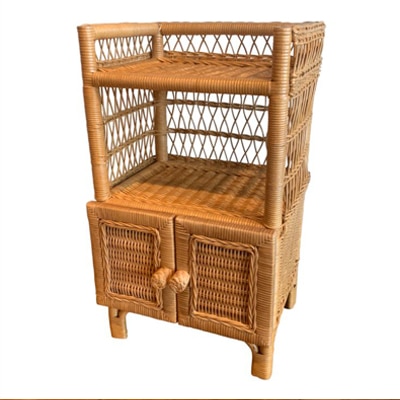
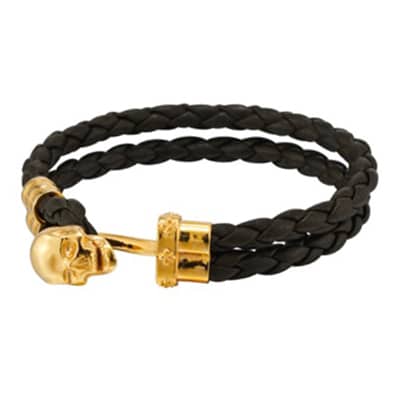
Producing Resize Images your products thats would sells 25% more!
1. Crop Pictures For eBay
a) PC Photos
Double click on the image. Select “Edit Image” from the options shown above or type “Ctrl+E”.
To your right, click on “Aspect Ratio” and change it from “Custom” to “Square”. Now, you can crop accordingly.
b) Photoshop
Open the picture in Photoshop and use the “Crop” tool from the box on the left. The top bar will show the cropping ratio. Add recommended pixel values in dimensions while making sure they are the same to set the cropping frame. For instance, 500 in height x 500 in width.
If it doesn’t fit the entire object inside the moving borders, then make the frame bigger by holding the mouse and dragging the corner to a point where you can see the entire product.
Make sure to set the picture to the middle and crop accordingly by double-clicking.
This may create an additional background. Make sure to change the background to white if it’s transparent. You can set the foreground color to “White”, select the “Paint Bucket” tool then, and click on the transparent background.
Now, just save the image from the File menu.
2. Resize Pictures For eBay
a) Paint
Right-click on the image and open it with “Paint” from the options.
When it opens up, select “Resize” from the toolbar on the left side.
A new window will appear. Change the “Resize” from “Percentage” to “Pixels”
Add the value ranging from 500 to 9000 pixels to the “Horizontal” option while “Maintaining Aspect Ratio”. It’ll adjust the image accordingly.
Once set, click “Ok” and “Save” it.
b) Photoshop
Open the picture in Photoshop and go to the “Image” tab. Select “Image Size” from the menu. It’ll display a window with the current size details.
Add recommended value depending on the image while ensuring it doesn’t lose the quality.
Click “Ok” and save it.
