How To Resize Pictures For Walmart? 3 BEST WAYS TO DO IT
How To Resize Pictures For Walmart- The 2 Best Ways to Do it.
It’s been around 4 years since Walmart decided to make the Portrait mode the new Image dimensions for the products. Two good things about the chosen layout are that you’ll have more space to make use of and that it prevents quality damage.
This doesn’t mean you’ll distort the image to fit the new scale since they don’t accept that. If it’s not in the 3:4 aspect ratio, then bring the image in the middle while having extra backgrounds around.
Didn’t get it yet? If you’re still struggling, then we suggest you follow our guides on how to resize pictures for Walmart properly.
Picture Requirements For Walmart
- The photo must be in 3:4 portrait mode.
- The minimum size of a picture can have been 600 by 800 pixels in width and height. However, it should be at least 1500px wide and 2000px high to enable the zooming function.
- Has to be from 72ppi to 300ppi.
- Walmart accepts JPG, JPEG, PNG, and BMP formats.
- The object has to be in focus, clear, and captured in a well-lit environment.
- It’s recommended to use pictures with white background.
- Don’t show accessories that aren’t included with the product.

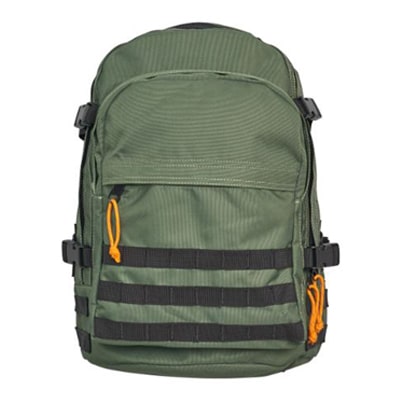
if you know How To Resize Pictures For Walmart that will boost your sells
Resize Pictures For Walmart In Windows
If the shape of the image is larger than the portrait format, then you need to crop it first. Thy crop will help exclude unnecessary parts and get you a proper frame of the object.
Click on the picture and type “Ctrl+E” or select “Edit Image” from the tab above.
Locate the option “Aspect Ratio”, If it’s “Custom” or “Free”, change it to the 3:4 option. Then, crop without excluding important details.
If the pixels aren’t right according to the requirements, then open the picture in “Paint”.
Select “Resize” from the toolbox and change the option from “Percentage” to “Pixels”. Add value that will suit the picture while following the requirements.
Let’s say, the image is 3333pxx high and 2500px wide. Decrease it to 2000 x 1500 by adding the values there.
Lastly, just save it.
Resize Pictures For Walmart In Photoshop
After opening your picture in Photoshop, click on the “Crop” from the toolbar on the left side. A moving frame will appear. On the top tab, you’ll find two boxes indicating “Cropping Ratio”. Add pixel values that represent portrait format. If it’s larger than the recommended range, then just add 2000px in height and 1500px in width.
No matter what values you put, make sure to use “px” after them.
In case any essential part goes out of the frame, you can enlarge the moving frame by holding the mouse and dragging the corner farther. Just make sure the image remains in the middle. After finally cropping the image by double-clicking on it, an extra background may appear.
We suggest keeping the background white. If it’s transparent, change the foreground color to White, use the “Paint Bucket” tool and click on the background.
In case the image background has other solid colors, you can use that too. Just get the color using the “Eyedropper” tool and apply it to the extra one using the “Paint Bucket”.
Now, save the picture.
In case the pixels have gone past the recommended range, then you can resize it by just going to the “Image” tab, then to “Image Size”. Just add the values of portrait mode according to the range and save it.